Everything nonprofits need to know about Give Lively donor receipts

.svg)
.svg)
.svg)
.svg)

When donors complete a transaction using Give Lively fundraising technology, something important happens automatically: they receive an email receipt. No action required from your team. No manual follow-up. Give Lively handles it.
But there's more to donor receipts than a simple email confirmation. An understanding of the system can help your nonprofit communicate more effectively with donors, stay organized and keep your records clean.
Here's a full breakdown of how Give Lively receipts work, what's in them, what your team can do with them and what to keep in mind.
Donor receipts go out automatically, but not always instantly
Give Lively handles automating donor receipt generation for nonprofits. Every time a donor gives through a Give Lively-powered page or form, a receipt is generated and sent to the associated email address. For most transactions – credit card donations, for example – this happens almost immediately. However, the timing can vary with other payment methods.
Bank and DAF transaction receipts
DAF (donor-advised fund) and bank payments are managed differently. They require additional processing, which delays the sending of final receipts until the transaction has fully cleared. A donor who gives via ACH/bank transfer likely won’t receive a receipt right away. That's expected behavior, not an error. However, the donor does immediately receive a notification email that the transaction was initiated.
Recurring donation receipts
Give Lively sends a receipt for the first payment only. If your nonprofit wants donors to receive receipts for each recurring payment, you can request this feature through Give Lively's customer experience team.
What's inside a donor receipt
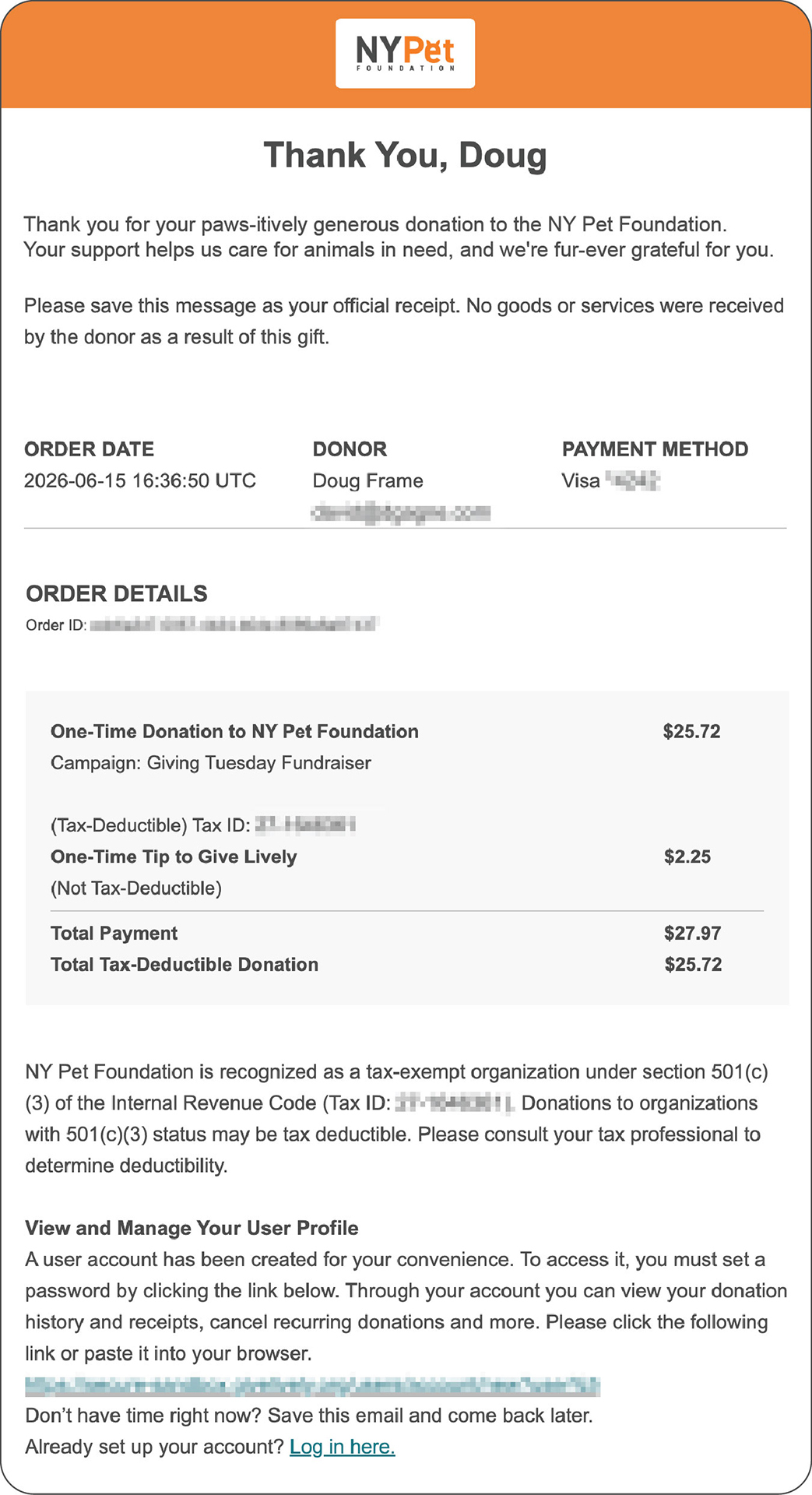
Give Lively nonprofit donation receipts function as donor tax receipts. They contain:
- donor's name and email address
- donation date and time
- an order ID
- amount given
- name and EIN of the beneficiary nonprofit
They also include any voluntary tip made in support of Give Lively and, for event transactions only, ticket-level detail.
Original online receipts don’t reflect refunds
A payment receipt captures the original transaction and is not reissued after a full or partial refund is processed. That being said, a refund receipt does get sent, which also contains many of the standard receipt details. In addition, transaction details in the Give Lively User Portal (a secure online feature for anyone who has contributed to a nonprofit through digital fundraising technology powered by Give Lively) show updated refund status, but the original payment receipt remains a record of the initial payment.
Timestamps
By default, Give Lively uses Coordinated Universal Time (UTC) for dates and times shown on receipts. This can sometimes cause confusion. A donor in San Francisco who gives at 7 pm PST on December 31 sees a UTC timestamp that reads 3 am on January 1. The donation date is accurate; it's just expressed in UTC.
To avoid this, donors can set a preferred timezone in their User Portal. Nonprofits can set a timezone as well in their Core Profile, which affects how data appears in their Reports Portal.
Make receipts work harder with customization
A receipt doesn't have to be a dry transaction summary. Give Lively automatically includes your nonprofit's branding and lets you add a customized thank-you message for donors to every receipt. That message can be a genuine extension of your organization's voice and mission.
- For Campaign Pages, you set the message in the "Thank You Message" tab within the campaign editor in the Nonprofit Admin Portal.
- For Event Ticketing pages, you can do the same in the event editor and even go a step further. You can add distinct messages for donors who purchase specific ticket types.
Merge tags take personalization further
Merge tags are dynamic placeholders you drop into your email subject line or email message body that automatically populate with each donor's information when the email goes out.
Available merge tags include:
- the donor's first name: *|FNAME|*
- last name: *|LNAME|*
- donation amount: *|DONATION_AMOUNT|*
- donation date: *|DONATION_DATE|*
- donation time: *|DONATION_TIME|*
So a subject line like "*|FNAME|*, thank you for your *|DONATION_AMOUNT|* gift!" becomes something like "Alex, thank you for your $50 gift!" That reads very differently than a generic acknowledgment.
Reply-to email
You can add a reply-to email address to every receipt, so donors who want to respond have a direct line to your team.
Customization matters beyond aesthetics
Think of the customized receipt less as a transactional notification and more as a donor thank you letter that happens to include tax information.
Nonprofits sometimes send their own separate acknowledgment emails after a donation, whether drafted in-house or triggered automatically through a payment processor or CRM. That's entirely fine, but it does run the risk of confusing donors who then receive two distinct receipts for the same gift.
A recommended approach is to use the available tools to incorporate your nonprofit's branding and voice directly into the Give Lively receipt. A well-crafted thank-you message, a personalized subject line with merge tags and a reply-to address that routes to your team can make the automated receipt feel completely your own – no duplicate communication needed.
Where donors can access their receipts
Donors are automatically sent email receipts, but they don't have to dig through their inbox to find past ones. Every donor who has given through Give Lively technology can access up to three years of donation history in the "Payment History" section of the Give Lively User Portal. They can view past donation information that was emailed to them at the time of the transaction.
The User Portal also assembles an annual tax summary, which is a helpful resource during tax season.
Of note, donors cannot currently download receipts directly from the Portal, but they can print or save to PDF from the on-screen view if a hard copy is needed.
Giving Basket receipts
For donors who gave through Charity Navigator's Giving Basket, the receipt experience is slightly different. Donors receive an automatic email receipt once the transaction is fully processed (once again, processing time depends on payment method) and can review their payment history by logging in to the Give Lively User Portal or their Charity Navigator account.
New for nonprofits: downloading donor receipts
Give Lively members now have a way to access nonprofit donation receipts directly, a meaningful addition for record-keeping and donor communications.
A few parameters to keep in mind:
- Receipt downloads by nonprofits are available only for transactions completed on or after January 13, 2026.
- Receipts only become available for nonprofit download five minutes after a transaction is finalized.
- Downloads by nonprofits are not presently available for Event Ticketing transactions or for donations made through the Giving Basket.
- For recurring donations, the receipt download corresponds to the first payment, unless you have asked for receipts to be sent after each recurring payment.
Individual receipts
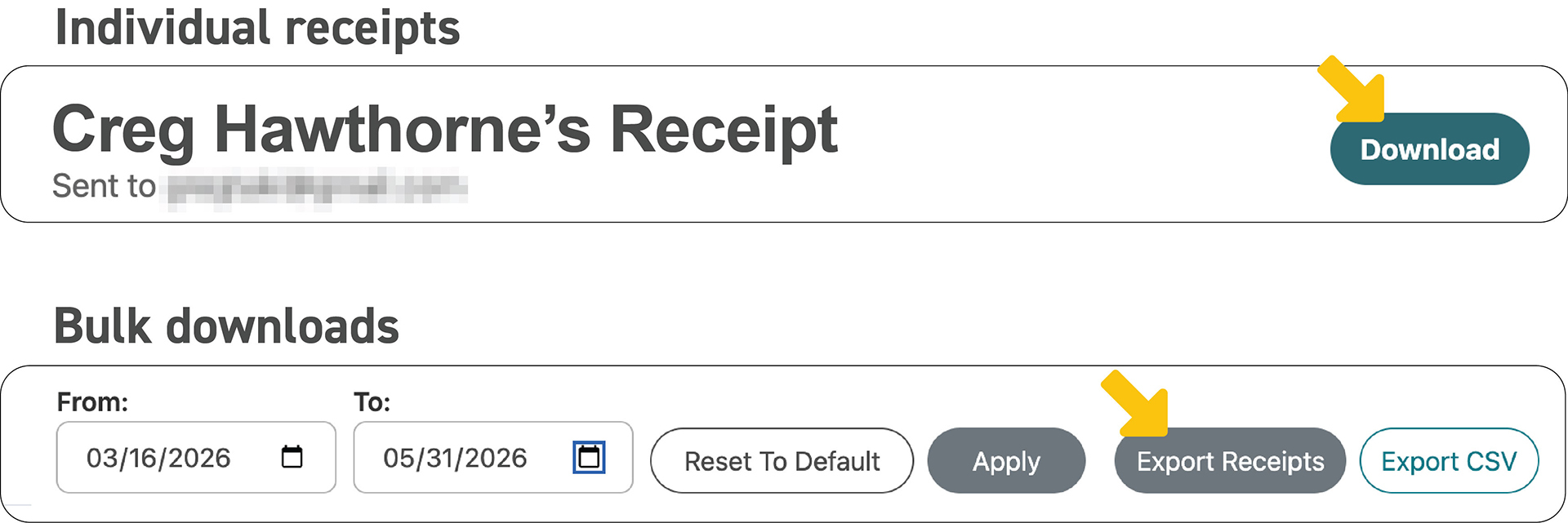
From the expanded view of line items in the Nonprofit Admin Portal's data reports, you'll find a "View Receipt" button that reveals the same information that was sent to the donor at the time of the transaction. A click on the "Download" button saves the receipt as an HTML file directly to your computer. (This is not available for donations made through Event Ticketing or the Giving Basket.) The receipt uses the same timezone the donor has set.
Bulk downloads
To save more than one receipt at a time, you can select a desired date range and then click the “Export Receipts” button. This generates a Zip file that can be downloaded via an email message to the logged-in user advising that “Your receipt download is now available.”
Reminders of what receipts don't cover
Nonprofit donation receipts are a record of what happened at the time of a transaction, and that's by design. Keep in mind the following additional limitations.
Refunds
As noted above, donation receipts are not reissued after a refund. That being said, if a donor receives a partial or full refund, a refund receipt does get sent, which also contains many of the standard receipt details. The User Portal also reflects the updated status. For nonprofits, refund status is recorded in the expanded line item view within the Reports Portal, but not on the downloaded receipt.
Resends
Receipts can't be re-sent by nonprofits directly. If a donor needs a receipt reissued, that currently requires reaching out to Give Lively's customer experience team.
Receipts as a donor relations tool
It's easy to think of automated nonprofit donation receipts as purely administrative – the confirmation email that checks a compliance box. But they should be handled as an important touchpoint in a donor's giving experience, one of the few moments when you have their focused attention. An evocative thank-you message for donors, a personalized subject line and a clear record of their impact can leave a lasting impression and serve as a jumping-off point for further stewardship.
Give Lively's receipt system is built around automating donor receipt generation for nonprofits, so your team doesn't have to think about it. Importantly, it gives you the tools to make each receipt feel less like a form letter and more like a genuine expression of gratitude. Take a few minutes to set up a customized message for each of your campaigns. It's time well spent.
Find more step-by-step guidance on customizing thank-you messages, using merge tags or navigating receipt downloads through the Nonprofit Admin Portal.
%201.svg)